
When a duplicate name error occurs or hot folder creation fails when registering a printer (1)
When using a version prior to RasterLink7 Ver4.0, if printer registration fails and the "The printer name has been already used." error appears even when a printer with the same name has not been registered, or if hot folder creation fails when registering a printer, refer to Steps 1 to 8 in Initial startup procedure, then install WMIC.
It may not be possible to install WMIC when using Windows 11 24H2. In such cases, install RasterLink7 Ver4.0 or later.

- If WMIC is already installed, or if the problem is not resolved even after installing WMIC, contact your dealer, your nearest Mimaki service office, or our call center.
- Open the command prompt, enter "wmic os get osarchitecture", then press the ENTER key.

- The command prompt is displayed by entering "cmd" in the search bar at the bottom of the desktop, and then clicking [Command Prompt] displayed in the search results.
- The message displayed can be used to determine whether WMIC is installed on that PC.
If WMIC is already installed, proceed to Step 8.
- If WMIC is installed
The operating system architecture is displayed.
- If WMIC is installed
The following message is displayed.
- Launch [Settings] from the Windows Start menu with the PC connected to the Internet.
- The [Settings] screen appears.
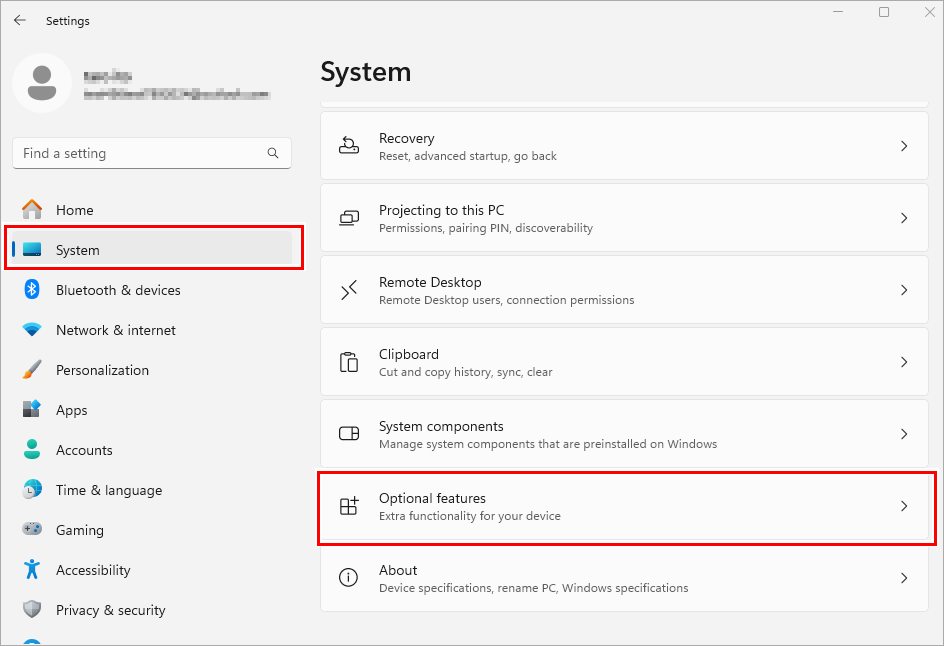
- On the [Settings] screen, select [System] - [Optional features].
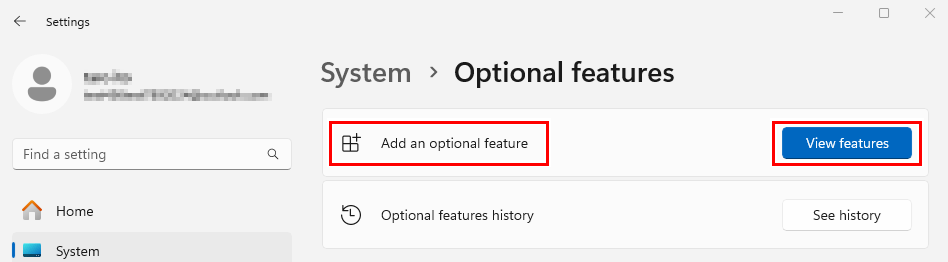
- Click [View features] in [Add an optional feature].
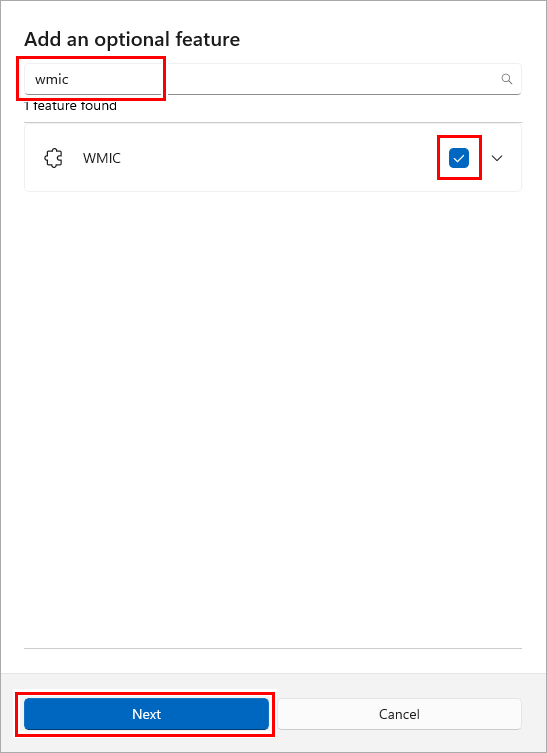
- Enter "WMIC" in the search input box, select the check box if WMIC is displayed, then click [Next].
- If WMIC is not displayed, install RasterLink7 Ver4.0 or later.
- Click [Add].
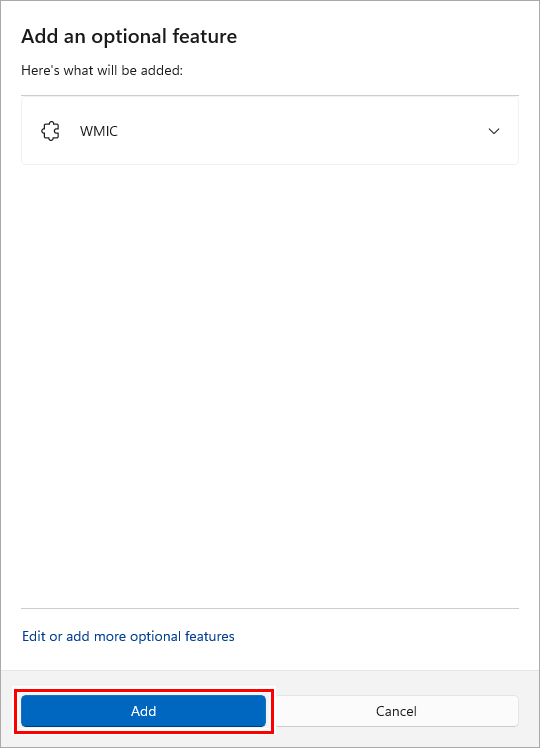
- WMIC installation starts.
- Once WMIC is installed, register a printer or create a hot folder in RasterLink7.
